
Instead of deleting photos or moving files to an external drive, I decided to look at something I had ignored for years—old software. Like many Windows users, I had accumulated dozens of applications I no longer used. Some were free trials, others were games I had finished months ago, and quite a few had been partially removed through Windows but still left files behind. That’s when I tried IObit Uninstaller. Instead of simply uninstalling programs, it also removed leftover files, registry entries, browser extensions, and bundled software that continued occupying storage long after the applications themselves were gone.
After one cleanup session, I recovered more than 20GB of disk space, and my list of installed programs became much easier to manage.
Why My Storage Kept Filling Up
At first, I assumed large videos and downloads were responsible for my low disk space warnings. After checking my storage, I realized the bigger problem was software I had forgotten about.
Over the years, I had accumulated:
-
Old games I never played anymore
-
Trial software that had expired
-
Duplicate utilities were installed while testing different programs
-
Bundled applications are installed alongside free downloads
Even worse, uninstalling them through Windows often left behind folders, registry entries, shortcuts, and configuration files.
Individually, these leftovers weren’t very large, but together they consumed several gigabytes of storage.
Why I Chose IObit Uninstaller
Windows can remove most programs, but it doesn’t always remove everything that comes with them. That’s where IObit Uninstaller stands out. Besides uninstalling applications, it automatically searches for leftover files, empty folders, registry entries, browser data, and other traces that many uninstallers ignore. It also makes removing stubborn programs much easier. If software refuses to uninstall normally or has become corrupted, the built-in Stubborn Program Remover can force the removal while cleaning associated files at the same time. For someone trying to recover storage instead of manually searching through system folders, this saves a considerable amount of time.
Features That Helped Me Recover Storage
IObit Uninstaller, a powerful uninstaller for Windows, offered several useful features that helped me clean my PC and recover around 20GB of disk space. Here are the top features of IObit Uninstaller:
-
Easy Uninstall & Cleanup Process: IObit Uninstaller is not only excellent in standard uninstallation but also goes beyond basic functionality by effortlessly removing bundleware and stubborn programs. The Stubborn Program Remover feature supports the removal of over 4000 stubborn programs, including Windows built-in software.
-
Real-Time Install Monitor: This feature keeps a record of every program installed on my PC. It tracks the files, startup entries, system services, scheduled tasks, DLL registrations, and other changes made during installation. Because of this, when I decide to uninstall that software later, IObit Uninstaller already knows what was added to my system.
-
Powerful Tools: In addition to its crucial uninstallation and cleanup features, this software includes powerful tools that help users manage their PC more effectively. It includes features like Software Health, Program Uninstaller, Browser Extension Uninstaller, Windows Apps Uninstaller, and Install Monitor.
-
User-Friendly Interface: The most amazing part of IObit Uninstaller is that it offers an easy-to-use interface, allowing users to eliminate unwanted programs and apps from their PCs without any technical knowledge. All installed programs are displayed in a clean list, making it simple to check which apps are taking up space and which ones are no longer needed.
-
Compatibility: IObit Uninstaller works seamlessly with all Windows versions, such as XP, Vista, 7, 8, 8.1, 10, and 11. Users can download the latest version of the program from its official site for free.
Part 4: How to Free Up Space Using IObit Uninstaller?
With IObit Uninstaller, freeing up space on my PC has become simple and quick. I was able to remove unwanted programs from my PC in just a few steps. Here is how to do it:
-
First, go to the IObit Uninstaller official site and download the latest version of the program on your PC. Once installed, launch it and select the “Programs” option from the left panel.
-
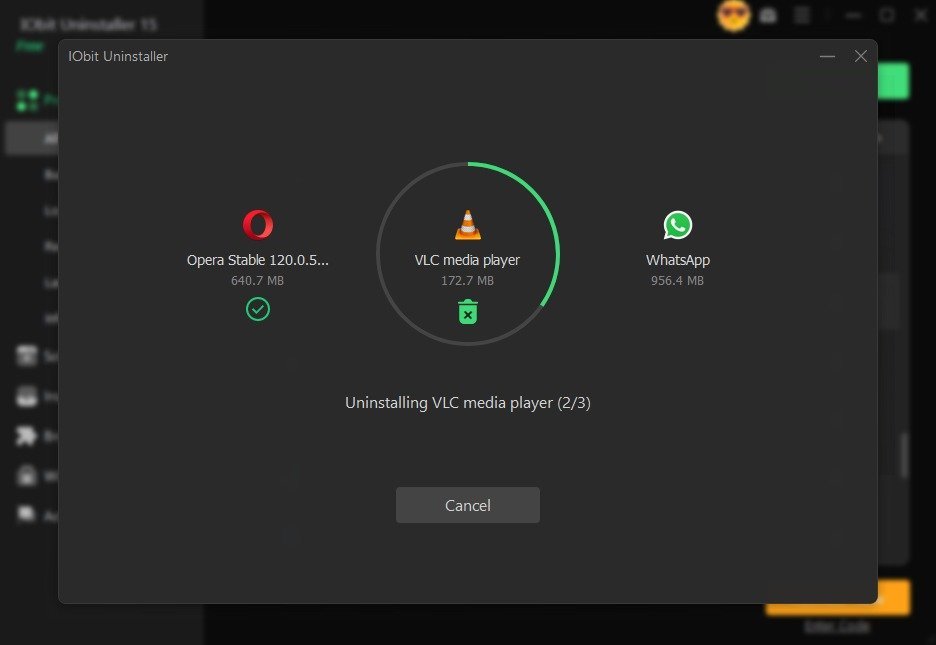
A list of all the programs installed on your PC will appear on your screen, along with details like program name, installation date, file size, and more. Find the program that you want to remove from your device and click on it. Next, click on the “Uninstall” button available at the top.
-
The program will start the uninstallation process. Within seconds, the selected program will be completely removed from your PC, including leftover files, shortcuts, and registry traces.
Final Thoughts
Most discussions about freeing up disk space focus on deleting personal files. In my case, uninstalling software made a much bigger difference. Old applications, bundled programs, and leftover installation files had quietly accumulated over the years, consuming far more storage than I expected.
Using IObit Uninstaller, I was able to remove programs completely instead of relying on the basic Windows uninstaller. The combination of Deep Scan, Stubborn Program Remover, Software Health, and Install Monitor made the cleanup far more thorough than simply clicking “Uninstall.” If your Windows PC is running low on storage, removing software you no longer use—and cleaning up everything it leaves behind—is one of the easiest ways to reclaim disk space and keep your system organized.