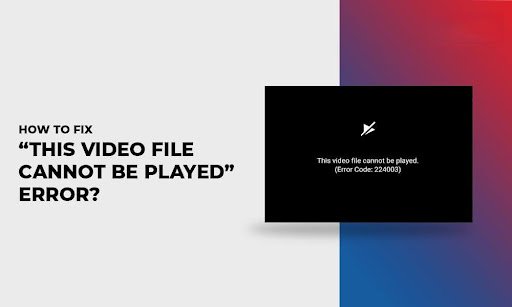

Last week my cousin sent me a video from her phone – some clip from her son’s birthday – and when I tried to open it, all I got was: “This video file cannot be played.” No sound, no preview, nothing. Just an error and a lot of frustration on a Sunday evening.
If you’re reading this, you’ve probably run into the same problem. Maybe it is the video you downloaded, one you shot on your own phone, or something a friend shared with you over WhatsApp. Whatever the case, here’s everything I’ve learned about why this happens and how to actually fix it – not just generic “restart your device” advice, but real steps that work.
Why does this even happen?
There isn’t one single cause, which is part of why the error is so annoying. In my experience, it usually comes down to one of these:
- The file got corrupted somewhere – a download that stopped halfway, a phone that died mid-transfer, or a USB drive that got yanked out too soon.
- The video’s format just isn’t something your player understands (MKV and AVI trip people up a lot).
- A codec is missing. Think of a codec as the translator between the video file and your screen – no translator, no playback.
- The app you’re using is outdated and hasn’t caught up with newer video formats.
- Sometimes it’s not even the video’s fault – your phone or laptop is just low on storage or running buggy software.
If this is happening with an online video and not a downloaded file, a shaky internet connection can trigger a similar-looking can’t play video message, and the fix there is completely different (usually just your Wi-Fi, not the file).
Start with the boring stuff first
I know it’s tempting to skip this, but restart the app, and if that doesn’t help, restart your device. Genuinely – half the time this fixes it, and I still don’t fully understand why. Something about temporary memory glitches. Don’t overthink it, just do it before anything else.
Update whatever app you’re using to play it
An old version of Media Player, or even your phone’s default gallery app might not recognize a format that came out after the app was last updated. So, you need to update it ASAP:
- On a computer, open the app and look under Help or Settings for an update option.
- On a phone, head to the Play Store or App Store, search the app, and update it if there’s a button waiting for you.
Switch players before you assume the video is broken
Your default player isn’t always the best one. I’ve had files that refused to open in Windows Media Player but played fine the moment I tried VLC instead. It’s free, works on basically every device, and handles formats that built-in players often can’t. Worth having installed even if you don’t need it today.
If the format’s the real problem, just convert it
Some older devices simply don’t support certain formats. Converting the file to MP4 usually solves it. There are plenty of free video converters out there, you can choose anyone as your preferences.
Figure out if it’s the file itself that’s broken
This is the step people skip, and it matters. Try:
- Playing that same video on a different device.
- Playing a different video on the same app you were using.
If other videos open fine but this one specific file won’t budge no matter what you try, the file itself is damaged – not your app, not your device.
When it’s the file – this is what actually works
I’ll be honest, once I confirmed it was a corrupted file and not a device issue, none of the usual tricks helped. That’s when I looked into video repair software instead of guessing my way through it.
I ended up using Stellar Repair for Video, and it’s built specifically for this – fixing files that won’t open, that play without sound, that stutter, or that are out of sync. Here’s roughly how it went for me:
- Downloaded and installed it on my laptop.
- Opened the tool and added the broken video file.
- Hit “Repair” and let it do its scanning.
- Previewed the result before saving, just to make sure it actually worked.
- Saved the repaired file once I confirmed it played properly.
It worked on the birthday video, by the way. Turned out the transfer had gotten interrupted, which is exactly the kind of damage this tool is meant to fix. If your video matters to you – and let’s be honest, if you’re troubleshooting it this hard, it probably does – this is the route I’d take over trying five different random fixes.
Running low on storage? That’ll do it too
If your phone or laptop is nearly full, playback can fail for reasons that have nothing to do with the video itself. Clear out some old apps, photos, or files you don’t need and try again.
Browser playback issues (Chrome, etc.)
- Clear your browser’s cache and cookies.
- Make sure the browser itself is updated.
- Check if an extension – ad blockers are usually the culprit – is interfering.
- Try a different browser just to isolate whether it’s browser-specific.
Smart TV playing up?
- Double check your TV actually supports the video’s format (your TV’s manual will list this).
- Try a different USB drive if you’re playing from one.
- Update your TV’s firmware through its settings menu.
So which fix should you actually try first?
If your device or app seems fine but this one file won’t open anywhere, don’t waste time on restarts and updates – go straight to repair software. If it’s playing badly across some apps but not others, it’s more likely a compatibility or codec issue, and switching players or converting the format will get you further.
A few quick questions people usually ask
Why does a video play on one device but not another?
Usually a format or codec mismatch – the device you’re trying it on doesn’t support how the video was encoded.
Can a corrupted video be fixed without losing quality?
Yes, tools like Stellar Repair for Video are designed to rebuild the file’s structure without re-compressing it, so quality stays intact in most cases. They also offer Online video repair so you don’t have to download the software.
Is it safe to use third-party repair software?
Stick to well-known tools with good reviews and download them only from the official website – that’s really the main precaution.
That’s the whole troubleshooting path, more or less in the order I’d actually try it myself. Start simple, narrow down whether it’s the device or the file, and if it turns out to be the file, don’t waste hours on it – repair software will get you there faster than trial and error ever will.