
Videos are the files people care about most – wedding footage, travel clips, a drone flight you cannot repeat. And they are also the files most likely to be lost in frustrating ways: deleted by accident, wiped by a format, or corrupted by a failed transfer. The good news is that video recovery from an SD card works – it just needs the right approach, because video files behave differently from photos.
This step-by-step guide walks you through recovering videos from an SD card, including large 4K and 8K files that other tools struggle with.
Why Video Files Are Harder to Recover
Videos are bigger than photos, and file systems store large files in scattered pieces called fragments. When you delete a video, those fragments become scattered across the card. Simple recovery tools look for whole, continuous files and miss the fragments – which is why deleted videos often fail to come back with basic software, or come back as files that will not play.
A proper video recovery tool has to scan, collect, and match fragments together. That difference is exactly why video recovery deserves a tool built for it. It is also why results vary so much between tools: the same card can produce a perfect MP4 with one program and nothing but corrupted files with another, depending on whether fragment matching is part of the scan.
Step-by-Step: Recover Videos from an SD Card
Step 1 Connect the SD Card and Select SD Card Recovery
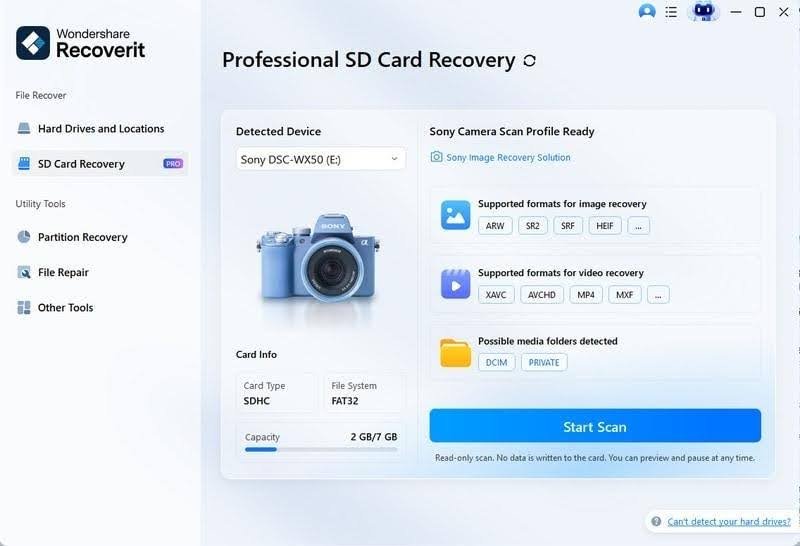
Start by stopping: remove the card from the camera and stop using it entirely. Then connect it to your computer through a card reader and launch Wondershare Recoverit. Click the **SD Card Recovery** tab – the tool identifies your card automatically, whether it came from a camera, drone, or GoPro.
Step 2 Run an AI-Accelerated Scan
Select your card and click **Scan**. Recoverit’s AI-accelerated scanning rebuilds device-specific file patterns and locates video files even when the card’s file system is damaged. As the scan runs, you can watch for your files in real time and stop early once they appear.
Step 3 Preview and Recover Your Videos
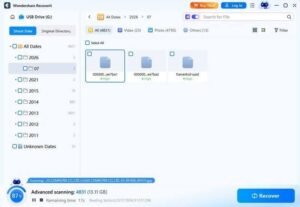
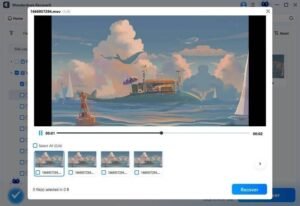
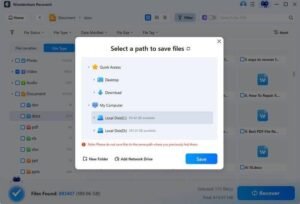
When the scan completes, filter by video type to focus on clips. Preview each file before recovering – Recoverit shows video thumbnails and metadata so you know exactly what you are getting back. Select the videos you want and click **Recover**, then save them to a different drive than the SD card.
How to Tell a Recoverable Video from a Lost One
During the scan, video files show up with different statuses. Files listed as “good” or previewable are almost certain to recover intact. Files marked as partial or fragmented can still be recovered, but may need repair afterward. Files that appear with no preview and a suspiciously small size are the riskiest – they are fragments of a file whose other parts were overwritten. Knowing the difference sets realistic expectations: preview what you plan to recover, and expect the repair step to handle the partial files.
Step 4 Use Enhanced Recovery for Fragmented 4K/8K Footage
If your videos were large, fragmented, or recorded as 4K/8K, run Enhanced Recovery on the same card. This mode performs a deep scan that collects and matches video fragments – the 4K and 8K video recovery feature is designed for exactly this: HD and UHD footage comes back complete and playable instead of broken into pieces.
Why File Format Matters for Video Recovery
Not all video files recover the same way. Simple formats like AVI are stored in larger, more continuous chunks that are easy to reassemble. More complex formats – MP4 and MOV, which most modern cameras and drones use – store metadata at the end of the file, so a fragmented or truncated file can lose its header and stop playing even though the video data is intact. This is why the repair step matters as much as the scan: a tool that can rebuild the file’s structure after recovery turns “unplayable” clips back into usable footage.
What If Recovered Videos Won’t Play?
A recovered video that refuses to play is a common frustration – usually because the file’s internal structure is damaged. Recoverit includes a video repair tool for this exact case: add the damaged file, repair it, and preview the result before saving. It supports common formats like MOV, MP4, MKV, MTS, and AVI, which covers the majority of camera and drone footage.
Tips to Prevent Video Loss
- Don’t reuse the card until recovery is done. Any new recording can overwrite deleted footage.
- Keep cards for single devices. Switching cards between cameras and computers increases corruption risk.
- Back up big footage after every shoot. Copy clips to a computer or cloud drive the same day; large files are the hardest to recover, so they deserve the most backup.
- Use high-speed, high-quality cards. Slow cards are more prone to recording interruptions and corruption.
- Record in shorter clips when it matters. Long continuous recordings fragment more heavily; if a shoot is critical, split it into segments so a single failure costs less footage.
Conclusion
Recovering videos from an SD card is very doable when you use a tool that understands how videos are stored. Stop using the card, run a scan built for fragmented footage, preview before you commit, and save to a safe drive. Wondershare Recoverit handles the whole flow – from quick scans for everyday deletions to Enhanced Recovery for 4K/8K fragments, plus repair for files that come back damaged. Your footage has a second chance; make it count. The extra minutes spent on a proper scan are nothing compared to the hours of footage they can bring back. And once the clips are home, copy them off the card before anything else – recovered video is only safe once it lives in at least two places.