
You just scanned a hard drive or SD card after a data loss, and the results are overwhelming – thousands of files, most of them old, unwanted, or irrelevant. Somewhere in that pile are the exact files you need, but scrolling through everything by hand feels like searching for a needle in a haystack. This is exactly the problem AI-powered search solves.
Smart search in data recovery software does what a manual hunt cannot: it understands what you are looking for, narrows the results in real time, and gets you to the right file in seconds instead of minutes.
What Is AI-Powered File Search?
AI-powered file search is a search system that goes beyond simple filename matching. Traditional search asks you to type an exact name and hopes the file system cooperates. AI search, by contrast, analyzes the content, metadata, and file type of everything it scans, then lets you filter and locate results with natural language and precise criteria.
In practice, this means three things:
- You can search by what you remember, not by exact names.
- You can filter by type, time, and size to cut thousands of results down to a handful.
- The results update as you type, so you see your files appear instantly.
For someone recovering deleted files, this is not a convenience – it is the difference between finding your data and losing it in a pile of noise.
Why “AI” Makes the Difference
The “AI” in AI-powered search is not marketing. The engine that classifies and filters your files learns from the data it scans: it recognizes file signatures, understands format families, reads timestamps, and weighs size and type together. When you filter for “photos from last week that are larger than 2MB,” the engine does not match text – it reasons about the files. That reasoning is what lets you find files you cannot name, which is exactly the situation after a data loss.
Why Search Matters After a Recovery Scan
The recovery scan is only half the job. Finding the files you actually want is the other half, and it is where most people struggle. A typical scan of a 256GB drive can return tens of thousands of files: deleted photos from years ago, system caches, browser files, and remnants of uninstalled apps. Your wedding photos or your client’s contract are in there somewhere, but they are buried.
Manual browsing through that much data is slow and error-prone. You might miss the exact file you need, or recover the wrong version. AI-powered search fixes this by letting you zero in on the files that matter – fast.
How AI Search Works in Recoverit
Wondershare Recoverit integrates AI-powered search directly into its recovery workflow. After a scan completes, you do not have to browse through every result. Instead, you use the search box and filters to locate exactly what you need.
Step 1 – Scan Your Storage Device
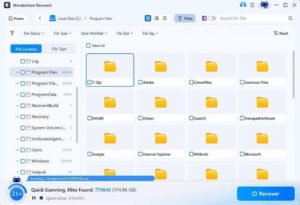
Launch Recoverit, select the drive, card, or device you lost data from, and run the scan. The AI-accelerated scanning engine maps your storage and lists every recoverable file – deleted, formatted, or corrupted.
Step 2 – Use the AI Search Box
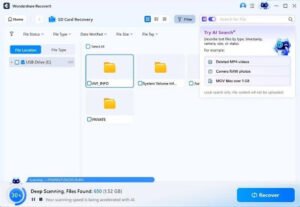
Once the scan finishes, type what you remember into the search box. It can be a filename, a file extension, or a partial word. As you type, the results narrow instantly, matching your search against the files found by the scan.
Step 3 – Apply Smart Filters
Combine your search with filters to pinpoint results:
- File Type filter – show only photos, videos, documents, or audio.
- Time filter – restrict results to files created or modified before the loss.
- File Size filter – find large video files or small documents by size range.
Step 4 – Preview and Recover
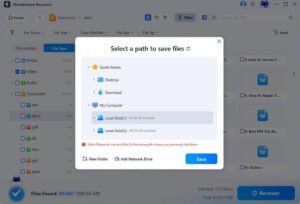
When you find the files you need, preview them to confirm they are intact, then click **Recover** and save them to a safe location.
Real-World Scenarios Where AI Search Saves the Day
- You deleted a client’s contract, not the whole folder. Search for “contract” or filter by document type, and the right file appears without touching the rest.
- You lost last week’s travel photos. Filter by date and type – photos from that week only – and skip the years of older images.
- A video file is buried among thousands. Filter by video type and size range, and the 4K clip you need surfaces immediately.
These scenarios share one pattern: you remember *something* about the file – its type, its timing, its rough size – but not its exact name. AI search is built for exactly that gap between what you remember and what you can name.
Common Mistakes to Avoid
- Recovering before filtering. Grabbing files from the raw result list often means recovering duplicates and wrong versions. Filter first, then recover.
- Searching with the full filename. Unless you are certain, use a partial word. A full name that is slightly wrong returns nothing; a partial name usually finds the file.
- Ignoring the size filter. When you know the file is large – a video, a design file – the size filter alone can eliminate 90 percent of the noise.
How to Get the Most from AI Search
- Combine search and filters. Search narrows by name; filters narrow by type, time, and size. Using both together finds files fastest.
- Search with partial terms. You rarely remember the exact filename. A partial word or extension is usually enough.
- Don’t forget preview. Search can find the file, but preview confirms it is the version you want before you recover it.
- Use it on every scan. Even a small scan benefits from filtering out the noise.
AI Search Across Platforms
The same AI-powered search experience is available whether you are on Windows or Mac. The Windows version and the Mac version of Recoverit both include the smart search box and filters, so the workflow you learn on one platform carries over to the other.
Conclusion
AI-powered search transforms data recovery from a slog through thousands of files into a targeted hunt that finds what you need in seconds. After a scan, the search box and smart filters – file type, time, and size – turn an overwhelming result list into a shortlist you can actually act on. With Wondershare Recoverit, the AI-powered file search is built right into the recovery flow, so finding your lost files is as fast as the scan that found them.