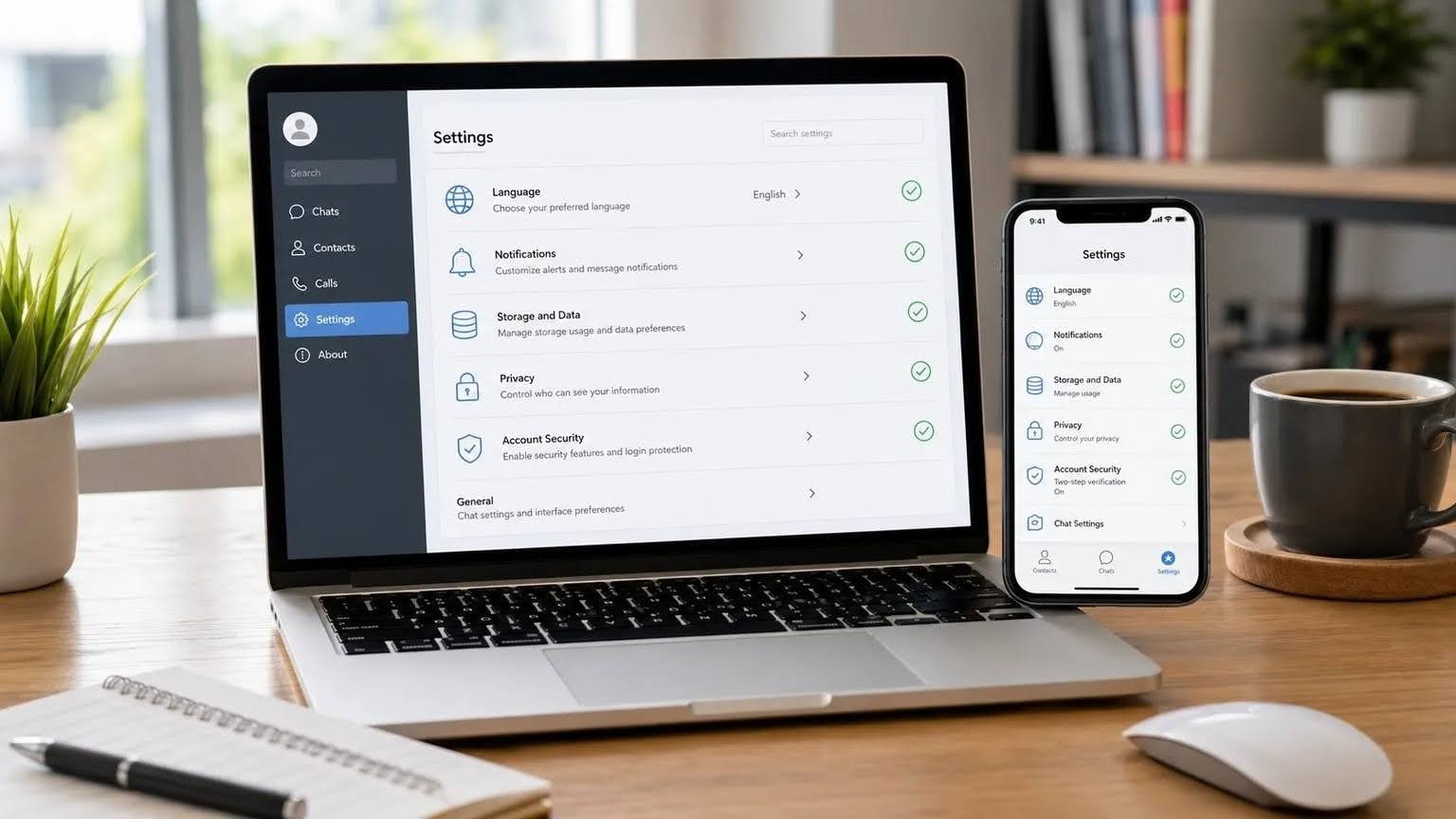

Installing a messaging application is only the first step toward a comfortable long-term setup. Once the software is running and the account is connected, the settings that users choose can have a major impact on notifications, storage usage, privacy, and daily workflow.
Telegram can be used across smartphones, desktop computers, and web browsers, so the ideal configuration may differ from one device to another. A desktop user may want fewer alerts and more flexible file handling, while a mobile user may care more about data usage, battery consumption, and quick access to important conversations.
Taking a few minutes to review the available settings after installation can make the application easier to use and reduce unnecessary distractions later.
Start by Reviewing the Interface and Language Settings
One of the first things new users should check is the interface language.
A familiar interface makes it easier to locate privacy controls, storage settings, notification preferences, and account security options. This can be particularly important for users who are not comfortable navigating technical menus in English.
Chinese-speaking users may search for information about Telegram 中文版 when looking for a localized interface, Chinese-language setup guidance, or explanations of common Telegram settings.
Regardless of the language selected, users should spend some time becoming familiar with the layout of the application. Important areas usually include chats, contacts, settings, notifications, storage controls, privacy options, and connected devices.
Understanding where these controls are located can make later troubleshooting much easier.
Users who switch between desktop and mobile devices should also remember that the interface may not look identical across platforms. A setting that appears in one location on a desktop application may appear under a different menu on a smartphone.
The goal is not to memorize every menu, but to understand the major categories that affect everyday use.
Review Notification Settings Before They Become Distracting
Notifications are useful when they help users notice important messages. They become a problem when every conversation, group, and channel produces an alert.
After installation, users should review notification settings before relying on the default configuration.
Private Chats
For important personal conversations, notifications may be useful throughout the day. However, users who receive many messages may prefer to disable sound while keeping visual alerts enabled.
Groups
Large groups can generate a high volume of activity. Muting low-priority groups or reducing the number of visible previews can help users stay focused while still allowing them to check the conversation manually.
Channels
Users who follow many channels may not need an alert for every update. In that case, notifications can be reduced while the content remains available whenever the user wants to review it.
Message Previews
Message previews can also affect privacy. On a personal computer, displaying the full message may be convenient. On a shared office screen or laptop used in public spaces, hiding message content may be a better choice.
Good notification settings are usually selective rather than all-or-nothing.
Control Storage and Automatic Media Downloads
Messaging applications can gradually consume a surprising amount of storage space.
Images, videos, documents, voice messages, and cached content may remain on the device even when the user no longer needs them.
After installation, it is useful to review automatic media download settings.
-
Whether photos should download automatically
-
Whether videos should download automatically
-
Whether large files should require manual approval
-
Whether downloads should behave differently on Wi-Fi and mobile data
-
How much cached media should remain on the device
Desktop and mobile devices often need different policies.
A desktop computer with plenty of storage may be able to handle more automatic downloads. A smartphone with limited storage or a restricted mobile data plan may benefit from tighter controls.
Users who regularly receive large files should also know where downloaded content is stored.
On a desktop computer, choosing a predictable folder can make file management easier. On mobile devices, reviewing storage usage periodically can prevent cached media from occupying unnecessary space.
Storage management is not a one-time task. It is worth checking again after the application has been used for several weeks or months.
Adjust Desktop Startup and Background Behavior
Desktop users should also review how the application behaves when the computer starts.
Some people want Telegram to open automatically every time they sign in to Windows or macOS. Others prefer to launch it only when needed.
Automatic startup can be convenient for people who use Telegram throughout the working day. However, users who want fewer background applications may prefer manual startup.
The same principle applies to background behavior.
-
Start automatically with the operating system
-
Remain active in the background
-
Display notifications when minimized
-
Download media while running in the background
-
Open links or files directly from conversations
There is no universal best configuration.
The most useful setup depends on how frequently Telegram is used and whether the computer is primarily for personal communication, work, or shared access.
Review Privacy Settings Instead of Keeping the Defaults
Privacy settings deserve attention because different users have different communication patterns.
Someone who uses Telegram only with close contacts may prefer different visibility settings from someone who participates in large public groups or manages communities.
Users should review available privacy controls and decide which options match their needs.
-
Phone number visibility
-
Profile photo visibility
-
Last seen and online status
-
Who can call the account
-
Who can add the account to groups
-
Blocked users
-
Message forwarding or related privacy controls where available
Users should avoid assuming that the default configuration is ideal for every situation.
For example, someone using Telegram mainly for professional communication may want tighter controls around personal information, while another user may prioritize convenience and accessibility.
Privacy choices can also change over time.
A user who joins more public groups or begins using Telegram for work may want to review these settings again later.
Use Localized Guidance for More Complex Settings
Technical settings can be harder to understand when the interface language is unfamiliar.
This is particularly true for options involving privacy, device sessions, storage limits, and desktop configuration.
Users who need additional help with interface language or desktop setup can refer to a Telegram Chinese setup guide for a more focused explanation of Chinese-language configuration and related desktop settings.
Localized tutorials can make it easier to understand what different controls are intended to do, especially for users who are setting up Telegram on a computer for the first time.
However, informational guides should still be distinguished from official software distribution channels.
A tutorial can explain configuration steps without being the developer or official distributor of the application.
Users should therefore continue to verify software sources separately when installing or updating applications.
Check Which Devices Are Signed In
Multi-device access is convenient, but users can easily forget how many devices remain connected to an account.
A typical account may eventually be signed in on:
-
A primary smartphone
-
A personal desktop computer
-
A work laptop
-
A tablet
-
A browser session
-
An older phone that is no longer regularly used
Reviewing active sessions periodically is a useful security habit.
Users should check whether each listed device is still recognized and necessary.
If an old computer or temporary browser session is no longer needed, ending that session can reduce unnecessary account exposure.
Users should be especially careful after using Telegram on:
-
Shared computers
-
Public workstations
-
Temporary browser sessions
-
Devices that will be sold or given away
Signing out directly from the device is useful, but reviewing active sessions from a trusted device provides an additional check.
Add Another Layer of Account Protection
Account security should not depend on a single verification step.
Users should review the additional security controls available in their account and decide which protections are appropriate.
Protect Verification Codes
Login and verification codes should never be shared with another person. Unexpected requests for account codes should be treated cautiously, even if they appear to come from someone claiming to provide support.
Review Additional Verification Options
Where additional password or two-step verification options are available, users may choose to enable them for another layer of protection.
Keep Recovery Information Current
Recovery details should be reviewed periodically so that users do not rely on outdated information.
Keep Devices Updated
The security of a messaging application also depends on the operating system and device on which it runs. Keeping Windows, macOS, Android, or iOS updated can reduce compatibility and security problems.
Be Cautious With Unexpected Files
Messages can contain links, archives, documents, and other files. Users should avoid opening unfamiliar attachments simply because they arrived through a messaging application.
Good security is the result of several small habits working together.
Use Different Settings on Desktop and Mobile
Using the same account across multiple devices does not mean every setting needs to match.
Desktop and mobile environments have different strengths and limitations.
Setting
Desktop
Mobile
Notifications
Reduce distractions during work
Keep important alerts available
Media Downloads
More flexible with large files
Limit usage on mobile data
Storage
Review cache periodically
Control large files more aggressively
Startup
Optional automatic launch
Managed differently by the mobile OS
Privacy
Consider shared workspace visibility
Consider lock-screen exposure
File Handling
Easier local file organization
More limited storage and screen space
A desktop computer is often better suited to long conversations and document management.
A smartphone is better suited to quick communication and mobility.
Users should configure each device around its actual role instead of copying the same preferences everywhere.
Build a Simple Post-Installation Checklist
New users do not need to configure every advanced option immediately.
A basic checklist is usually enough to create a reliable starting point.
After installing Telegram on a new device, review:
-
Interface language
-
Notification preferences
-
Message previews
-
Automatic media downloads
-
Storage and cache usage
-
Desktop startup behavior
-
Privacy controls
-
Active sessions
-
Additional account protection
-
Software and operating system updates
These settings can always be adjusted later.
The purpose of the first review is simply to avoid using the application for months without realizing that important preferences were never configured.
Make the Setup Match the Way You Communicate
Installing Telegram only establishes access to the account. The quality of the everyday experience depends on what happens afterward.
Notification controls can reduce unnecessary interruptions. Storage settings can prevent media from consuming too much space. Privacy options can help users manage personal information, while active session reviews can reduce the risk of forgotten devices remaining connected.
Desktop and mobile users should also avoid assuming that one configuration works equally well everywhere.
A few minutes spent reviewing language, privacy, storage, notifications, and account security after installation can create a more practical and manageable messaging environment across devices.